Open source · Windows · Linux · macOS

PlayStation 2 games, on your terms.

PCSX2 is the emulator players trust for compatibility, visual quality, and control. Get the build, follow a clear setup path, and play.

Jump to quick start · FAQ

PCSX2 running on a desktop

Full frame preview — scaled to fit; actual UI varies by version and settings.

3

Platforms

GPL

License

Active

Dev & fixes

Wiki

Docs

Vulkan

Modern GPU

Profiles

Per-game

Why PCSX2

Preservation, clarity, and room to tweak.

The PlayStation 2 era spans RPG epics, arcade racers, and niche experiments. PCSX2 brings that library to modern hardware: faster loads than optical drives, optional HD output, and settings you can tune per title — without replacing your physical collection.

What you can expect

  • Boot your own disc images and backups with a workflow similar to the original system.
  • Improve image quality with upscaling, texture filtering, and widescreen hacks where appropriate.
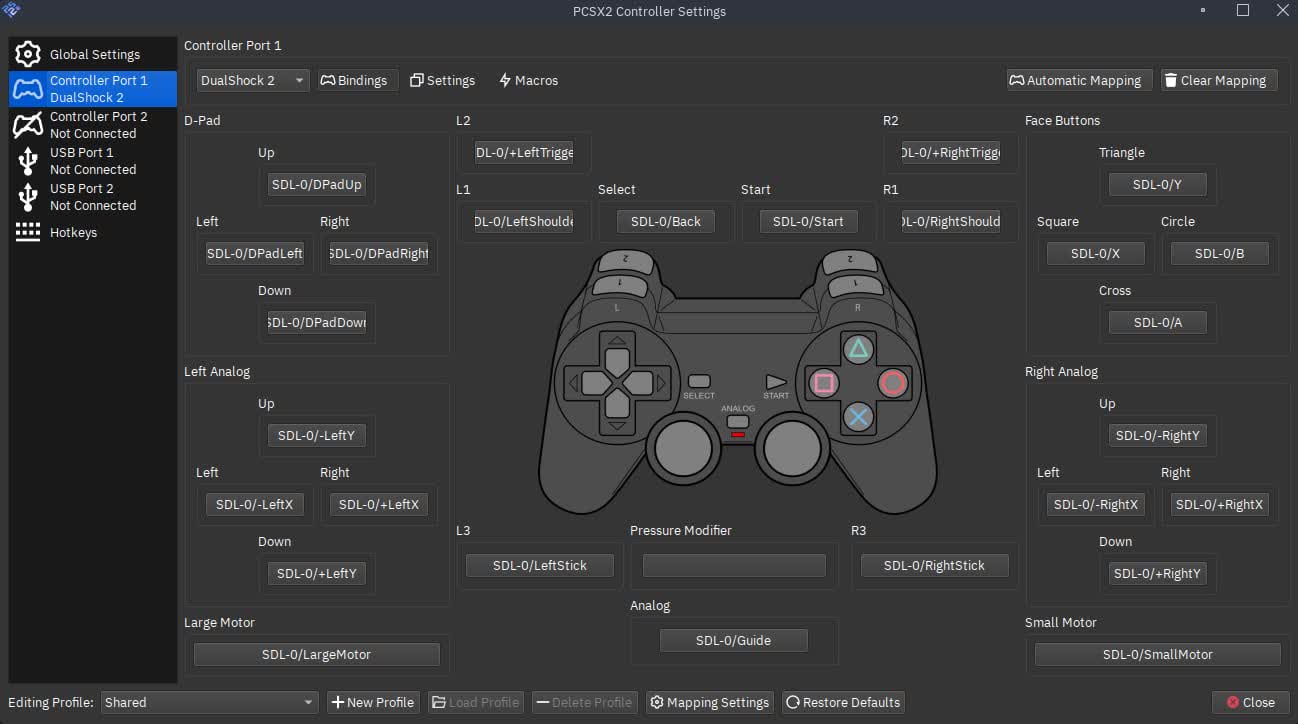
  • Map any controller — from cheap pads to arcade sticks — and save layouts per game.
  • Save states and fast boot for experimentation, practice, or long RPG sessions.

What stays on you

  • BIOS: You must supply a legal dump from a console you own.
  • Games: Use discs and rips you have the right to use — same as any emulator.
  • Expect variance: Some titles need specific fixes; the wiki is the first place to look.

PCSX2 is not affiliated with Sony. All trademarks belong to their owners.

For newcomers

Stable builds, defaults that work on many titles, and a setup path that skips jargon.

For tweakers

Per-game INIs, renderer choice, and a debugger when you need to dig in.

For collectors

Play imports, obscure releases, and demos without hunting aging hardware for every region.

Flow

Three steps. No guesswork.

Designed like a product onboarding — download, configure, troubleshoot only if you need to.

01

Download

Grab stable or nightly builds from trusted sources. Stable builds are the default for daily play; nightlies ship the newest fixes and regressions are possible.

  • Windows: installer or portable — pick what fits how you update.
  • Linux and macOS: use your distro, Flatpak, or GitHub releases.
  • Check requirements before chasing performance issues.
Get builds
02

Set up

BIOS, graphics, controllers — one guided path. Most friction comes from skipping a clean baseline or stacking hacks before you know the game runs at defaults.

  • Add a BIOS dump from hardware you own; match region when the game cares.
  • Start with Vulkan (or the recommended renderer for your GPU), native or modest internal resolution.
  • Map the controller, then create per-game profiles only after a stable boot.
Open guide
03

Fix issues

Black screen, FPS, inputs — practical fixes. Symptom-first pages and the wiki beat random toggles; logs tell maintainers what actually failed.

  • Renderer and internal resolution swaps fix many graphics glitches.
  • Audio desync often traces to speed hacks — test with conservative settings.
  • Forums and wiki list per-game patches and known-good configs.
View fixes

Play styles

One emulator, many reasons to launch.

Whether you replay a childhood favorite or stress-test a new GPU, PCSX2 adapts — not the other way around.

Story & RPG

Long campaigns benefit from save states, fast-forward where supported, and crisp UI text at higher internal resolutions.

Racing & action

Stable frame pacing matters. Tune sync, reduce input lag with the right renderer, and use profiles for arcade-style session hopping.

Speedruns & practice

Reproducible boots, save state routing for practice segments, and clear hotkeys for reset and slot management.

Archives & imports

Region-free playback for discs you own, language patches, and documentation-first workflows alongside the community wiki.

Capabilities

Built for serious play.

Core strengths that show up in daily use — from first launch to per-game obsession. Explore the full features page for a deeper breakdown.

Compatibility

Broad library coverage with frequent compatibility updates and game-specific fixes.

Visual quality

Upscaling, anisotropic filtering, and modern renderers for a cleaner image on today’s displays.

Control

Per-game profiles, save states, and deep tuning when you want it — defaults when you don’t.

Audio

SPU emulation with timing options so music and voices stay believable across genres.

Networking

Experiment with supported multiplayer paths where the project and community tools allow.

Debugging

Built-in tools for breakpoints and inspection when you’re chasing a rare crash or glitch.

Patches & cheats

Widescreen patches, no-interlace hints, and community databases — applied with care so you don’t fight the wrong fix for hours.

Memory cards

Virtual cards, import/export, and conversion workflows so saves from real hardware can often carry over with the right tools.

Fullscreen & capture

Borderless and exclusive modes, aspect handling, and predictable behavior for OBS or simple screenshots without fighting the compositor.

Under the hood

Where CPU and GPU actually go.

No magic — PS2 titles stress different subsystems. Starting here saves hours of guesswork.

Graphics pipeline

The GS (Graphics Synthesizer) is emulated with renderers like Vulkan and Direct3D 11. Heavier internal resolution and effects shift work to the GPU; some titles still need strong single-thread CPU performance for the EE.

  • Typical bottleneckEE / VU threads vs. GS draw calls
  • First knob to tryRenderer + internal resolution

CPU & timing

The Emotion Engine and IOP coordinate with strict timing. That’s why “more GHz” isn’t always enough — cache behavior and per-game patches matter.

  • MTVU / threadsCan help when the workload splits cleanly
  • Game fixesAutomatic lists + manual overrides

Input path

SDL and native APIs map DualShock-style layouts, Xbox pads, and keyboard cleanly.

Storage

ISO, BIN/CUE, CHD, and direct disc access — pick what matches your library workflow.

Updates

Stable for everyday play; nightly builds when you want bleeding-edge fixes.

Expectations

Hardware vs emulation — what changes.

Emulation is faithful work, not a 1:1 silicon clone. Knowing the trade-offs keeps frustration low.

Topic Original PS2 On PC with PCSX2
Resolution Fixed output era-appropriate to TV Upscaling, widescreen hacks, MSAA — GPU-dependent
Loading Optical drive latency Often faster from SSD; CHD vs raw rip can differ
Saves Memory cards Virtual cards + save states for practice
Online Original services (mostly gone) Varies by title; community tools where applicable

Genre spotlight

Different genres, different pressure points.

A quick map of what to stress-test when something feels off — not every genre needs the same settings.

JRPG / long RPG

Stable frame pacing, readable UI text at higher IR, save states for brutal boss runs.

Fighting

Input latency, consistent frame times, avoid aggressive sync hacks that add jitter.

Racing / arcade

High FPS targets, analog steering range, shader effects that hit the GS hard.

Horror / fixed camera

Dark scenes expose banding; test gamma and blending without crushing blacks.

Sports / sim

Crowd draw calls, crowd audio — CPU and SPU can spike together.

Music / rhythm

Audio timing is critical; small latency changes matter more than a few pixels.

Open-world / streaming

IO and mipmaps — stutters may be storage or emulation edge cases.

Party / mini-games

Multitap-style games need correct pad mapping; check per-game wiki notes.

Glossary

Terms you’ll see in guides.

Short definitions — enough to read tuning threads without guessing.

EE (Emotion Engine)
Main PS2 CPU; many games are CPU-bound on one or two hot threads.
VU & VU0 / VU1
Vector units for geometry & effects; heavy math can track CPU load oddly.
GS (Graphics Synthesizer)
What you “see” as pixels; the GPU side of the pipeline in PCSX2.
IOP
I/O processor; disc, audio, and peripherals route through here.
SPU2
Sound processing; crackling often means timing or sync, not “bad speakers.”
Internal resolution
Render resolution inside the emulator — not the same as your desktop resolution.
HW / game fixes
Automatic patches for known quirks; toggle carefully per wiki.
CHD
Compressed disc image format — smaller files, same integrity checks.

Evolution

Why “modern PCSX2” feels different.

Not a history lesson — a snapshot of how the project moved toward clearer renderers and tooling.

  1. Stronger renderers

    Vulkan and D3D paths matured — faster feedback loops for GPU-bound scenes.

  2. Better defaults

    Safer first-run settings for common hardware; fewer “why is everything black” moments.

  3. Clearer docs

    Wiki + community writeups — cross-linked from setup and troubleshooting flows.

  4. Active nightlies

    When your bug is already fixed upstream, nightlies close the gap fast.

Explore the site

Deep dives, specs, and help — pick a path and bookmark what you need for your next session.

Performance at a glance

Starting points — tune per game and hardware.

Tier Resolution Renderer
Entry Native → 2× Vulkan / D3D11
Mid 2× → 3× Vulkan
High 4×+ Vulkan / GL

Symptoms → first check

When something looks wrong, try the usual suspects before chasing obscure hacks.

You see… Try first…
Black screen, audio only Renderer swap (Vulkan ↔ D3D11)
Stuttery FPS Lower internal resolution
Crackling audio Sync modes / latency settings
Textures wrong Per-game graphics settings

Checklist

Before your first boot

Skip the “it worked on stream” roulette — a short prep list prevents most first-hour headaches.

  1. 1

    Install / extract cleanly

    Use trusted builds; avoid repacks with bundled BIOS or unknown DLLs.

  2. 2

    GPU driver current

    Vulkan and D3D paths depend on up-to-date vendor drivers.

  3. 3

    BIOS in the right place

    Point PCSX2 at a legal dump; verify region matches your discs where it matters.

  4. 4

    One game, one profile

    Start with defaults, then clone settings when you optimize a specific title.

Need line-by-line? Open the full setup guide.

Pro tips

Small changes, outsized wins.

Not every game needs max resolution — these habits save time when something misbehaves.

Workflow

Name profiles after the game ID

Keeps INIs searchable when you revisit a library months later.

Graphics

Test at native first

Confirms the game boots before you layer upscaling and HW fixes.

Performance

Watch CPU vs GPU limits

If GPU is idle and FPS is low, the EE/VU side likely needs attention.

Input

Map pause & quick save

Comfort keys reduce menu diving during difficult sections.

Storage

Prefer CHD for shelf space

Compressed images stay checksum-friendly for long-term archives.

Updates

Stable vs nightly

Daily driver on stable; switch to nightly when a fix lands for your exact bug.

Reality check

Myths vs facts.

Short answers to recurring misconceptions — save time before you chase the wrong fix.

Myth

“Any gaming PC maxes every PS2 game at 8K.”

Some titles stress EE/VU in ways that ignore your GPU’s muscle — CPU limits are real.

Fact

Tune per game; start native, then scale.

Internal resolution is the first knob after a stable boot.

Myth

“More speed hacks = always better.”

Aggressive hacks can break timing, audio, and cutscenes — use the wiki’s game list.

Fact

Defaults first, then targeted fixes.

If a title needs a hack, it’s usually documented with side effects.

Myth

“BIOS files are optional.”

The PS2 BIOS is required. You must supply your own legal dump.

Fact

Region matters for some discs.

Match BIOS region to your library where the game expects it.

Capture & streaming

Record clips without surprise stutter.

OBS, GPU capture, and window capture can add latency or steal GPU time. If you stream, keep a “broadcast” profile: slightly lower internal resolution, cap FPS to a stable value, and test with your capture method — not just fullscreen alone.

  • Prefer game capture or Vulkan-friendly capture paths when available.
  • Disable unnecessary overlays while testing frame drops.
  • Separate “offline” and “live” profiles so you don’t mix settings.

Accessibility & comfort

Remap controls freely, use save states to reduce repetitive inputs, and adjust UI scale where the OS allows. There’s no single “accessibility mode” — combine emulator settings with your platform’s assistive tech.

For long sessions: cap frame rate, use headphones with comfortable volume, and take breaks — PS2 titles weren’t designed for 4-hour unpaused runs on modern panels.

Regions & BIOS

Match your library to your dumps.

NTSC-U / NTSC-J / PAL

Titles differ by region — FPS, languages, and even content. Your BIOS region should align with your discs when the game checks it.

One BIOS per machine dump

Dump from hardware you own. Don’t redistribute or download “packs” — they’re a legal and security risk.

Imports & patches

Fan translations and patches may require specific file versions — read the patch notes before you burn time.

Resource hub

Where to go next.

Wiki, forums, and on-site guides — bookmark what matches how you learn.

FAQ

Common questions

Straight answers — for edge cases, the wiki and help pages go deeper.

Is PCSX2 free?

Yes. It is free and open source under licenses that respect your freedom to run, study, and share the software.

Do I need a BIOS?

Yes — the PS2 BIOS is required. You must legally dump it from hardware you own; redistribution is not allowed.

Why do games perform differently?

Each title stresses the emulated CPU, VUs, and GS differently. There is no single “best preset” for the entire library.

Will my laptop run it?

Many will, at native or modest upscaling. Thin ultrabooks may struggle with demanding titles at high internal resolution — check the requirements page.

Linux or Windows — does it matter?

Both are supported. Driver quality and desktop compositors can affect latency; pick what matches your hardware and workflow.

Where do I report bugs?

Report bugs with logs, build version, and steps to reproduce — generic “it doesn’t work” posts are hard to act on.

Can I use save files from a real PS2?

Often yes, with conversion — formats vary. Community guides detail transfers for memory card images.

Is online play supported for every game?

No. Some titles had custom servers or modes; support depends on the game, patches, and community infrastructure.

Does upscaling fix jagged edges in every scene?

Not always — 2D elements, FMVs, and post-processing can behave differently. Sometimes native with filters looks more coherent.

Can I run from a USB drive?

Often yes, but random stutter can come from slow USB or aggressive power saving. Prefer fast storage for large ISOs.

Why does my FPS cap at half refresh rate?

VSync, compositors, and “half-rate” NTSC targets can interact. Test with vsync off in a controlled profile first.

Are shaders precompiled like native PC games?

Emulation generates work the GPU didn’t see on original hardware. First-run hitches can happen until caches warm up.

Do I need a discrete GPU?

Integrated graphics can run many titles at native or light upscaling. High IR and MSAA want dedicated VRAM headroom.

What about mods and texture packs?

Community projects exist for some games — follow their install notes; wrong load order breaks more than it fixes.

Can I use a Steam Deck or handheld PC?

Many users do, at modest settings. Thermals and TDP limits matter more than on a desktop tower.

Why do cutscenes desync from audio?

Timing-sensitive sequences need stable EE/IOP/SPU settings — speed hacks are a common culprit.

Is dual-screen or ultrawide supported?

You can span a window, but the game’s aspect ratio is still PS2-era unless hacks or widescreen patches apply.

How do I know if my dump is bad?

Hash checks against known-good dumps where documented; random freezes or missing audio can be red flags.

Can I automate launching games?

Front-ends and CLI-style workflows exist; keep paths and per-game configs consistent when you script.
From the community

Real sessions, real setups

Illustrative feedback — your mileage varies with hardware and game.

“Vulkan made a huge difference for demanding titles.”
Desktop user
“Per-game profiles fixed texture issues I couldn’t solve globally.”
Community member
“Controller mapping is straightforward.”
Windows user
“Nightlies fixed a flicker that stable hadn’t picked up yet.”
Linux + AMD
“The wiki saved me from toggling random hacks for hours.”
First-time user
“Save states turned grind-heavy RPGs into something I could finish.”
Returning player
“Switching off aggressive hacks fixed FMVs that used to hitch.”
Cutscene-focused player
“Laptop mode on battery was unplayable — plugged in and it’s night and day.”
Notebook user
“Forums pointed me to one checkbox I’d never have found alone.”
Forum lurker → fixed

Start in minutes.

Download a build, follow the setup guide, and keep troubleshooting resources one click away.

Download